EA Sports has published an official College Football 27 PC settings guide covering every display, advanced graphics, and gameplay visual option available at launch — the first time the full game releases on PC day-and-date with consoles.
If you are wondering which of these College Football 27 PC options actually move the needle for competitive play versus which are purely cosmetic, the answer is not as simple as cranking everything to Ultra — MaddenGuides.com breaks down what each setting actually does and where smart compromises live.
News
College Football 27: PC Deep Dive Display Settings
Your complete breakdown — what happened, what changed, and what it means for your game.
Key Takeaways:
- First-ever day-one PC launch: College Football 27 arrives on PC simultaneously with PlayStation 5 and Xbox Series X|S for the first time in franchise history.
- Full crossplay support: PC players can compete cross-platform with PS5 and Xbox Series X|S users in Dynasty, Road to the College Football Playoff, College Football Ultimate Team, and Play a Friend modes.
- Resolution up to 4K: The game supports resolutions from standard 1080p all the way to 4K, with sharper player models, uniforms, stadiums, and field detail at higher settings.
- Auto (60/30) Frame Rate Cap: A dedicated auto setting runs gameplay at 60 FPS and drops cutscenes to 30 FPS, letting you balance responsiveness with cinematic presentation quality.
- Ray tracing support: Raytraced Lighting is available on supported hardware, delivering improved light bounce and stadium illumination beyond the standard lighting pipeline.
- Separate gameplay and cutscene quality controls: Players can independently set visual quality for active gameplay and non-interactive cinematic moments, so you can run leaner on-field while keeping replays and entrances at higher quality.
Introduction:
It’s Kobra here with the full College Football 27 PC settings guide breakdown you have been waiting for. EA Sports dropped an official deep dive on June 4, 2026, covering every display, advanced graphics, and gameplay visual option coming to the PC version of EA Sports College Football 27. This is a big deal — it is the first time the full game has launched on PC on the same day as consoles, and EA’s studio team in Orlando clearly put real thought into giving players granular control over how the game looks and runs.
Running a site like this since 2001 and having spent years as a former EA Sports Official Madden Strategy Guide author, I can tell you that settings guides are where most players leave performance on the table. The difference between a smooth 60 FPS experience and a choppy one is not always raw hardware — it is knowing which settings to prioritize and which to dial back first. That is exactly what we are going to sort out right here. If you want more Madden tips on getting the most out of your gameplay setup, we have you covered.
Crossplay in College Football 27:
Pay close attention to this one because it changes how you think about your entire friend group’s platform situation. According to the Official Source, College Football 27 supports full cross-platform play between PC, Xbox Series X|S, and PlayStation 5. That covers Dynasty, Road to the College Football Playoff, College Football Ultimate Team, and Play a Friend modes — which includes Play Now and Mascot Mashup.
That is a broad crossplay net. Dynasty and CFB Ultimate Team being cross-platform is the part that stands out most, since those are the long-form modes where players invest serious time. Your friend on PS5 can jump into your Dynasty league even if you are running the game through Steam or the EA App on PC. EA has a dedicated Crossplay FAQ for the full mode-by-mode breakdown.
College Football 27 PC Display Settings:
The display settings section is where most players should spend their first few minutes after booting the game. Window Mode gives you three choices: Fullscreen, Borderless Window, and Windowed. Fullscreen is the go-to for raw performance and focus — it dedicates your GPU’s output to the game directly. Borderless Window is the move if you are streaming or regularly alt-tabbing to Discord or a browser, since it lets you switch between apps without minimizing.
Fullscreen Monitor selection matters if you are running a multi-monitor setup — a gaming monitor, a TV on the side, or a secondary screen for streaming dashboards. You pick which display the game treats as primary. Global Visuals sets your starting quality preset (Low, Medium, High, or Ultra), and Auto will pick a baseline based on what EA detects about your hardware. Once you start tweaking individual settings manually, that preset label changes to Custom — which just means you are no longer matching a default profile exactly. Nothing is broken; it is just tracking that you went off-script.
Frame Rate and Resolution Options:
Here is what makes this work for competitive players: the Frame Rate Cap setting has an Auto (60/30) option that runs gameplay at 60 FPS and drops cutscenes to 30 FPS. That split is smart design. Active gameplay is where input responsiveness matters — you want every snap, every route break, every coverage read firing at 60 FPS minimum. Cutscenes and team entrances? You are watching, not reacting, so 30 FPS there costs you nothing that matters.
Resolution control is equally flexible. The game renders to whatever resolution you set for fullscreen, from 1080p up through 1440p and 4K. At 4K you get sharper player models, more readable uniform numbers, and finer stadium detail on the field. The trade-off is GPU load — running 4K at 60 FPS asks more of your card than 1440p at the same frame rate. Monitor Refresh Rate selection tells the game how often your display physically updates per second, so matching your monitor’s native refresh rate here gives you the smoothest possible output if your PC can keep up. These are the core College Football 27 PC controls most players will touch first. For a deeper look at Madden strategies and how performance settings connect to gameplay reads, we have additional breakdowns on the site.
Advanced Graphics Configuration:
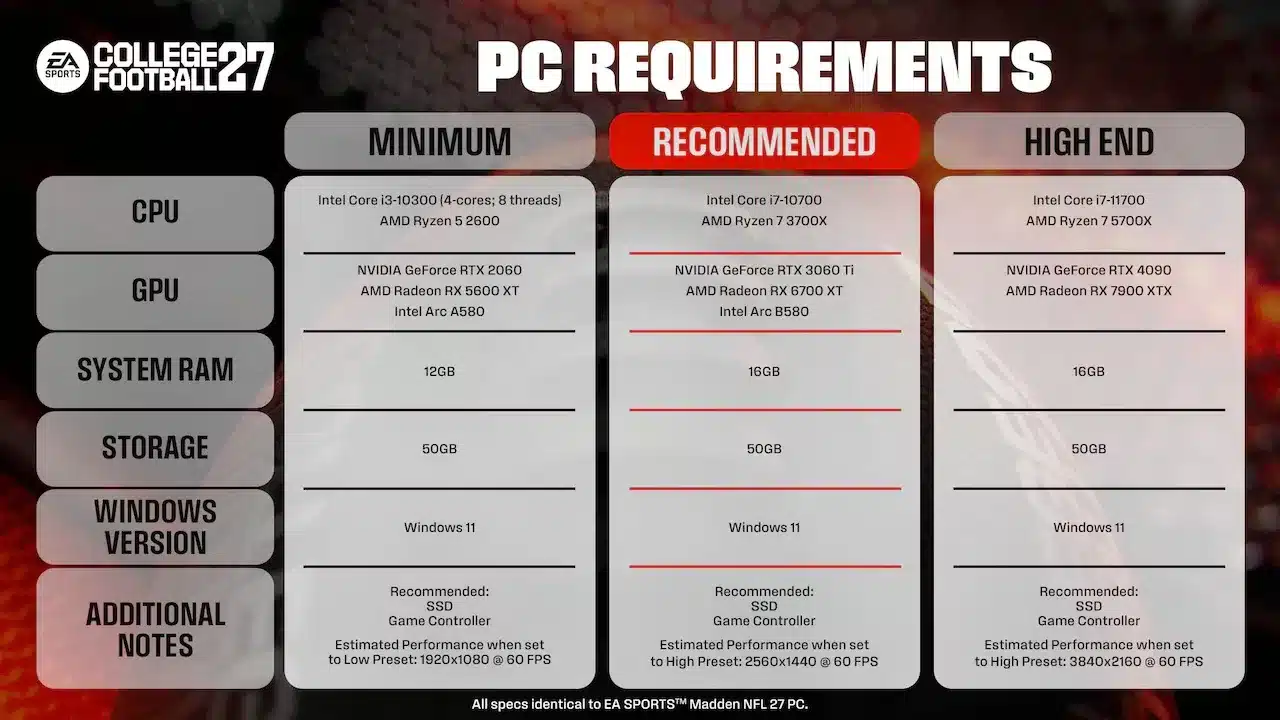
This is the part most players miss. The Advanced Settings menu goes well beyond a simple quality slider. VSync synchronizes frame output with your monitor to cut down on screen tearing — on at the cost of minor input latency, off for faster response at the risk of visible tearing on older displays. HDR auto-detects your display configuration and, when supported, delivers brighter stadium floodlights, deeper shadow contrast, and more accurate color in night games.
Raytraced Lighting is the headline feature for high-end PC builds. When enabled, light bounces more realistically off helmets, turf, and stadium structures — the difference is visible in night game stadium illumination, particularly around the goal posts and scoreboards. Turning it off drops to a simpler lighting model and recovers meaningful frame rate on mid-tier GPUs. Lighting Quality, Sideline Quality, Advanced Hair, and Higher Texture Quality all operate on their own sliders, so you can stack ray tracing with lower sideline density to find a balance your system handles well. The Graphics Adapter selection is one to check right away on laptops — many gaming laptops have both integrated and dedicated GPUs, and the game defaults may not be pointing at your discrete card.
Gameplay vs. Cutscene Visual Settings:
EA built a dual-layer quality system — the same visual options appear twice, once for active gameplay and once for cutscenes. The list includes Mesh Quality, Crowd Quality, Shadow Quality, 3D Grass, VFX Quality, Ambient Occlusion (with SSAO and GTAO modes), Ambient Occlusion Quality, Bloom, Lens Flares, and High Res Circular DOF. Every one of these can be set independently depending on whether you are in a live play or watching a replay, team entrance, or other cinematic sequence.
The practical application is straightforward. Run gameplay at Medium or High across most categories to hold 60 FPS stable during snaps and routes. Then push cutscene settings to High or Ultra on options like High Res Circular DOF and Bloom, since those only fire during non-interactive moments where GPU headroom opens back up. 3D Grass and Crowd Quality are two of the bigger frame rate draws during active play — those are the first things to step down if you are chasing more consistent performance on a mid-range card. Ambient Occlusion in GTAO mode gives noticeably richer shadow depth around player equipment and turf contact, but SSAO at Medium is a clean trade-off that most people will not distinguish during live gameplay at full speed.
College Football 27 PC vs. Console: What’s Different:
On console, your visual settings are largely locked — you get a Performance Mode or Fidelity Mode toggle, and that is about it. The PC version of College Football 27 gives you ten-plus individual sliders across display and advanced categories, plus the dual gameplay/cutscene layer on top of that. That granularity is the real difference. A PS5 or Xbox Series X player cannot independently tune their Shadow Quality away from their Crowd Quality — on PC, you can.
Resolution flexibility is another gap. Consoles output at fixed targets — 4K in Fidelity, dynamic resolution in Performance. On PC, you pick your exact render resolution and pair it with your monitor’s native refresh rate, which means a 1440p 165Hz gaming monitor can be configured to actually use those specs rather than being capped at a console-equivalent ceiling. The frame rate cap options, including Auto (60/30), also give PC players a level of control that console versions simply do not expose. For players who want to dig into tools that help analyze and plan your College Football strategy alongside these performance gains, check out what we have built at MaddenGuides.
College Football 27 PC Settings Guide: Optimization Tips:
Let me show you something here — start with the Auto preset and run a few games before touching anything else. EA’s Auto mode reads your hardware and picks a baseline. Play a full Dynasty game at that setting and watch your Performance Overlay frame rate counter (found in Advanced Settings) to see where you actually land. That gives you a real benchmark before you start adjusting.
From there, the priority order for tuning is: Frame Rate Cap first, then Resolution, then the Advanced individual sliders. Lock your frame rate cap to match your monitor’s refresh rate or use Auto (60/30) if you want that cutscene/gameplay split. Drop resolution before dropping Raytraced Lighting — going from 4K to 1440p recovers more GPU headroom than disabling ray tracing on most mid-range cards. Shadow Quality and 3D Grass are your biggest frame rate contributors after resolution, so those are the next levers to pull. Keep an eye on the ESPN NFL and NFL.com for any hardware partnership announcements EA makes around the PC launch that could affect recommended specs going forward.
The Madden Guides Take:
Right there in the Advanced Settings list is where EA made the smartest call: separating Raytraced Lighting from the global quality preset. It used to be all-or-nothing on console, and even on competing PC sports titles the advanced lighting is usually buried or locked behind a single toggle that takes everything else with it. Having ray tracing as its own switch means you can run Ultra on every other category and just flip that one off to recover 10-15 FPS on a mid-range GPU without the rest of your settings collapsing.
I did want to point that out to you specifically because the dual gameplay/cutscene control layer is the other feature that deserves attention. As you look at your screen during a Dynasty night game with High Res Circular DOF and Bloom pushed to Ultra on cutscenes only, the difference in that team entrance shot is real. The replay quality jumps noticeably while your gameplay frame rate stays locked. That kind of flexibility is what separates a properly configured PC experience from simply plugging in and hitting play.
Five FAQ Questions:
Is College Football 27 on PC the same full game as the console versions?
Yes. EA confirmed that College Football 27 releases on PC at launch day-and-date with PlayStation 5 and Xbox Series X|S, and it is the full version of the game — not a scaled-back port. This is the first time the franchise has launched on PC simultaneously with console platforms.
Which game modes support crossplay between PC and console in College Football 27?
Crossplay is supported in Dynasty, Road to the College Football Playoff, College Football Ultimate Team, and Play a Friend — which covers Play Now and Mascot Mashup. Cross-platform play works between PC, Xbox Series X|S, and PlayStation 5. EA’s Crossplay FAQ has the complete mode-by-mode breakdown.
What does the Auto (60/30) Frame Rate Cap actually do?
It runs active gameplay at 60 FPS and switches to a 30 FPS ceiling during non-interactive cutscenes — team entrances, replays, close-ups, and other cinematic moments. This gives your GPU more headroom to hold 60 FPS during snaps and play, where responsiveness matters, while maintaining a cleaner visual presentation in moments where you are watching rather than controlling.
Does College Football 27 on PC support ray tracing?
Yes. Raytraced Lighting is available for PC hardware that supports it. When enabled, it improves light bounce, shadow accuracy, and stadium illumination — most visible in night games and under floodlights. It can be toggled independently from other Advanced Settings, so you can disable it without affecting your Lighting Quality, Shadow Quality, or other visual settings.
What is the difference between SSAO and GTAO in the Ambient Occlusion setting?
Both add soft contact shadows where objects meet — helping players, equipment, and field elements look grounded rather than floating. SSAO is the more performance-efficient option. GTAO delivers richer, more accurate depth shadowing around player models, turf contact, and stadium objects but carries a higher GPU cost. During fast gameplay most players will not distinguish the two, making SSAO the better choice for anyone prioritizing frame rate.
Final Thoughts:
The College Football 27 PC launch is a genuine addition to the franchise, not a checkbox port. The level of settings control EA has built in — from dual gameplay/cutscene visual layers to independent ray tracing toggles and monitor-specific display options — gives PC players tools that console versions simply cannot match. Crossplay being live across all the major modes at launch removes the last reason a PC player would feel left out compared to their console friends.
The settings system rewards players who spend a few minutes dialing it in. Auto gets you close, but the real performance gains come from learning which individual sliders — 3D Grass, Crowd Quality, Shadow Quality — carry the most frame rate cost during live play, and adjusting those first before touching anything else. That is the kind of thinking we apply to everything here: real football logic, real optimization logic, applied to how you actually play the game.
Stay locked in to MaddenGuides.com for every College Football 27 breakdown, playbook analysis, and strategy guide as the season gets underway. Subscribe to our newsletter and never miss a coverage drop.